 explorer
Preview the template's pages: Dashboard, Post, Categories, Category, Announcements and Search.

Explore the explorer Walkthrough
- The mCore framework and how it elevates Kajabi course design
- Page layouts: full-width, padded, sidebars, and post-page control
- Designing post pages with playlists, action bars, and progress tools
- Sections library: pre-made, custom, and dynamic content sections
- Sidebars, outlines, gamification, and progression-based engagement
Explore the explorer Walkthrough
Buy One. Get the Entire Collection.
Layout
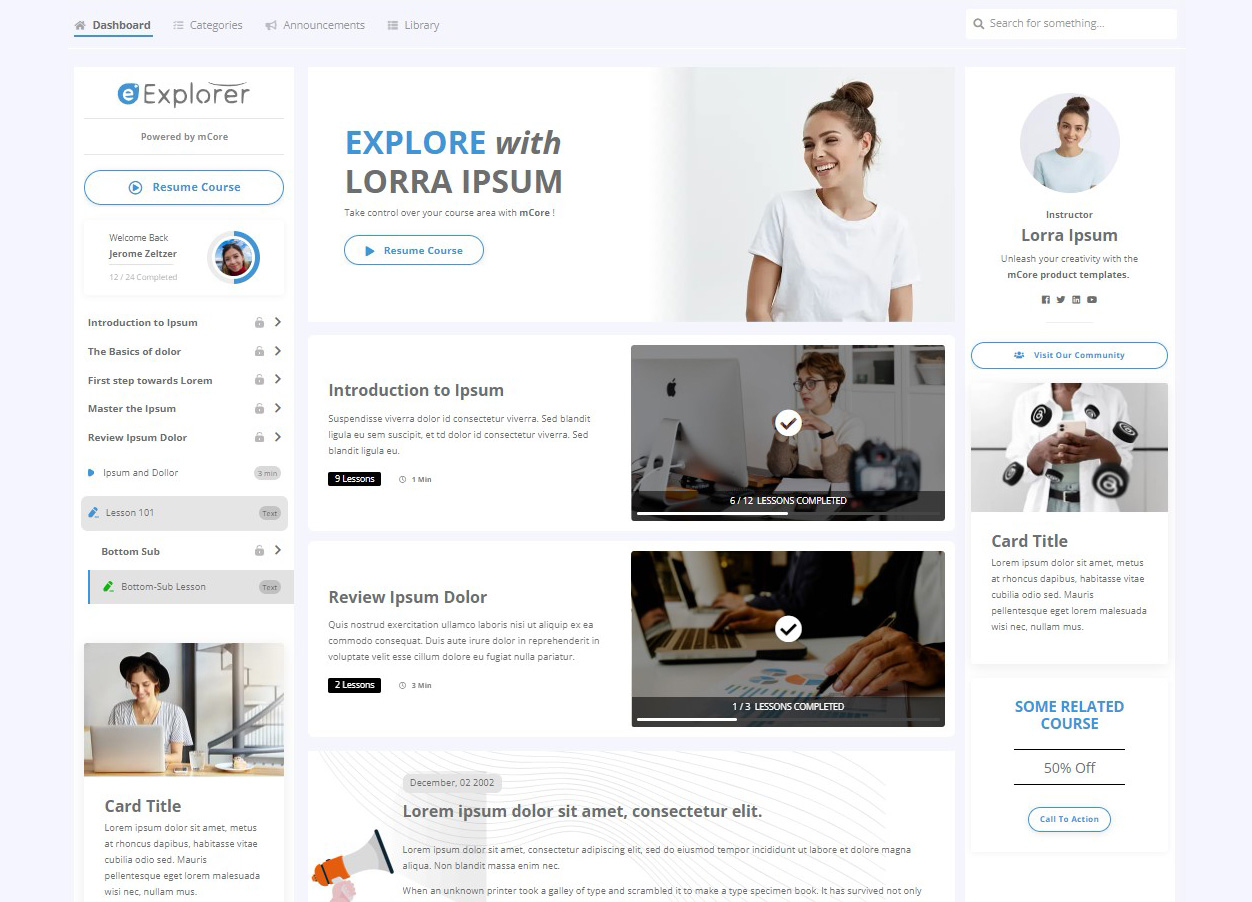
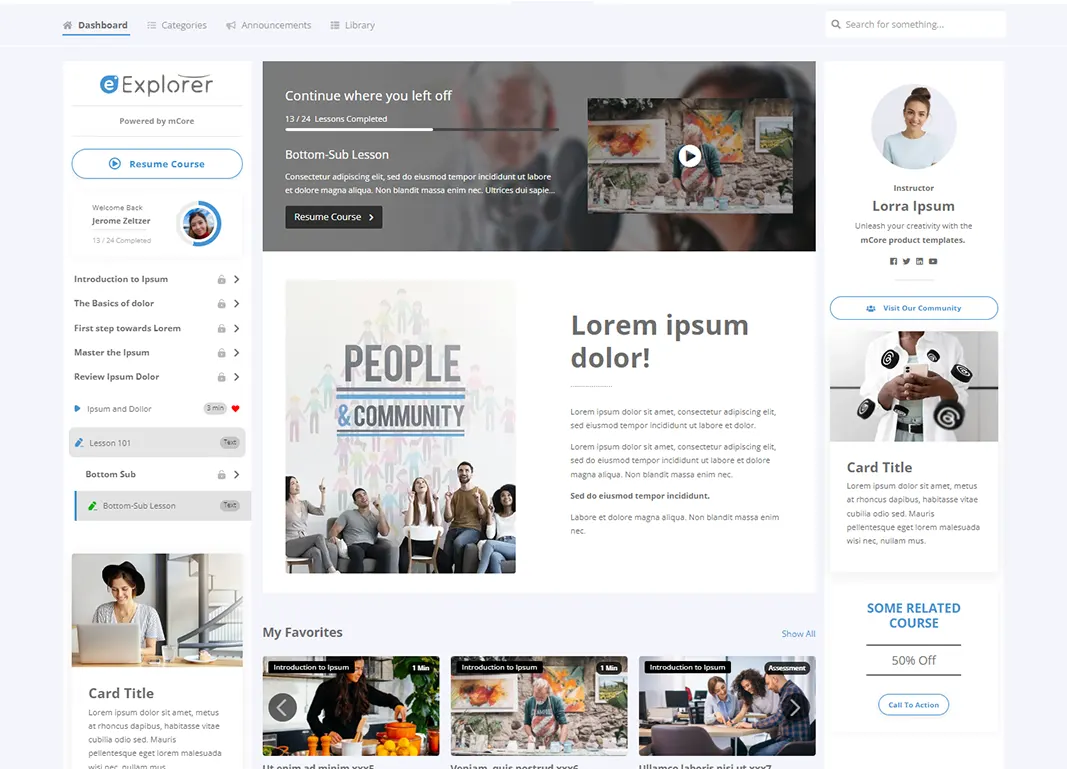
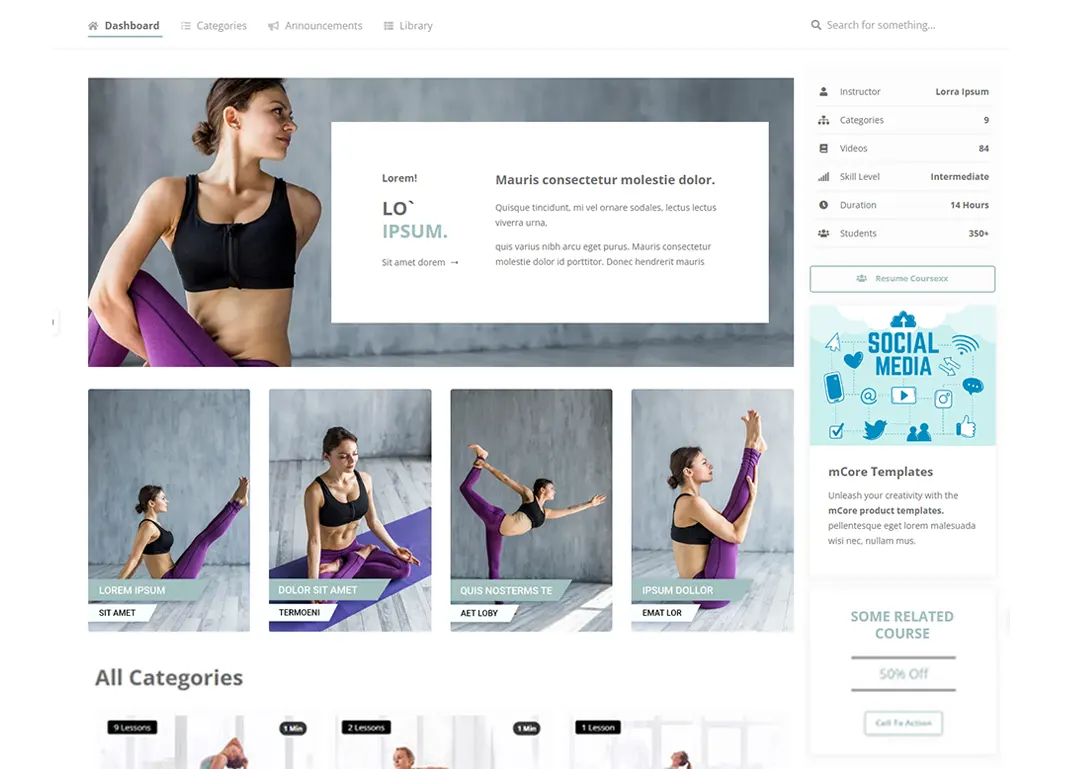
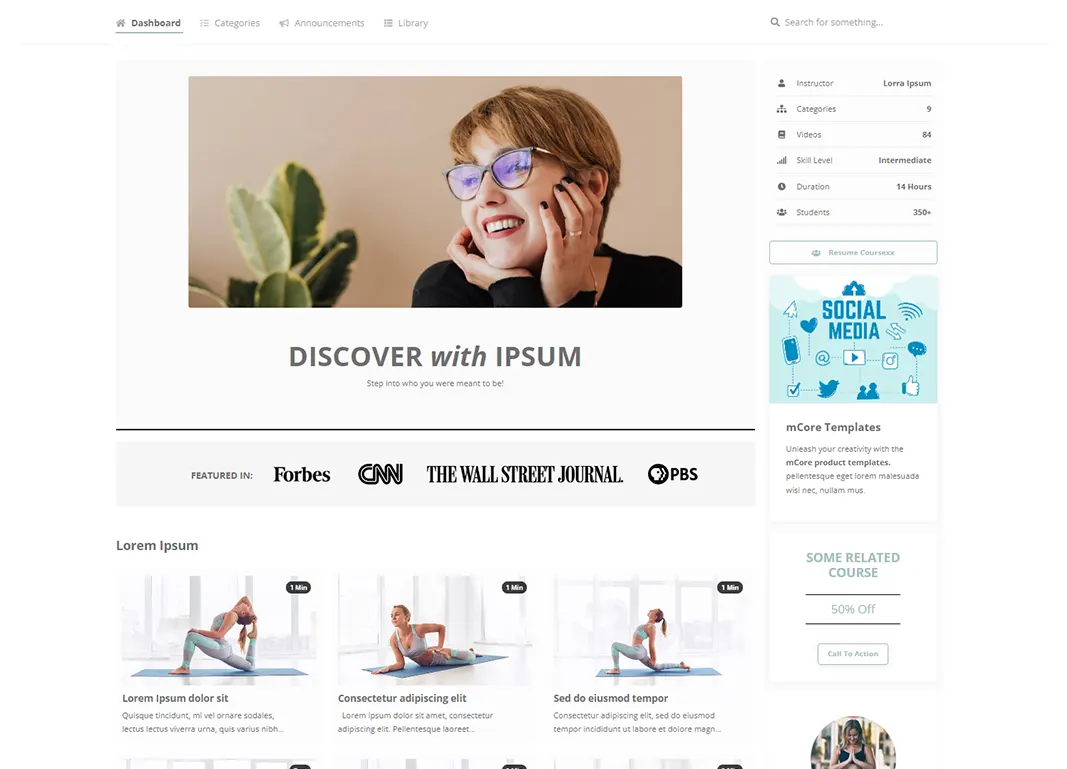
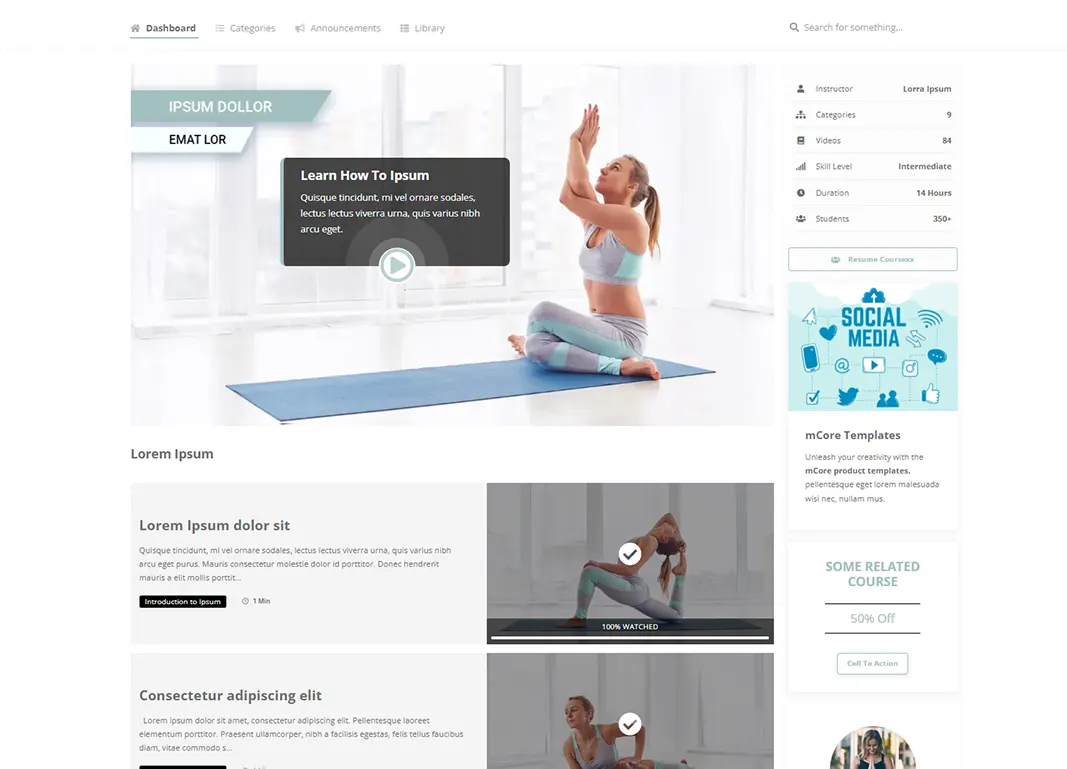
mCore templates offer six core layouts for you to choose from, enabling you to select the one that best suits your content and students' needs.
Switch between layouts by visiting your template’s settings.
All Pages besides the Post Page: Categories, Category, Announcements, and Search share the same layout as your dashboard, providing consistency across your platform.
The layout of your Post Page remains independent from other pages, offering further customization options.
- Padded With outline bar and sidebar
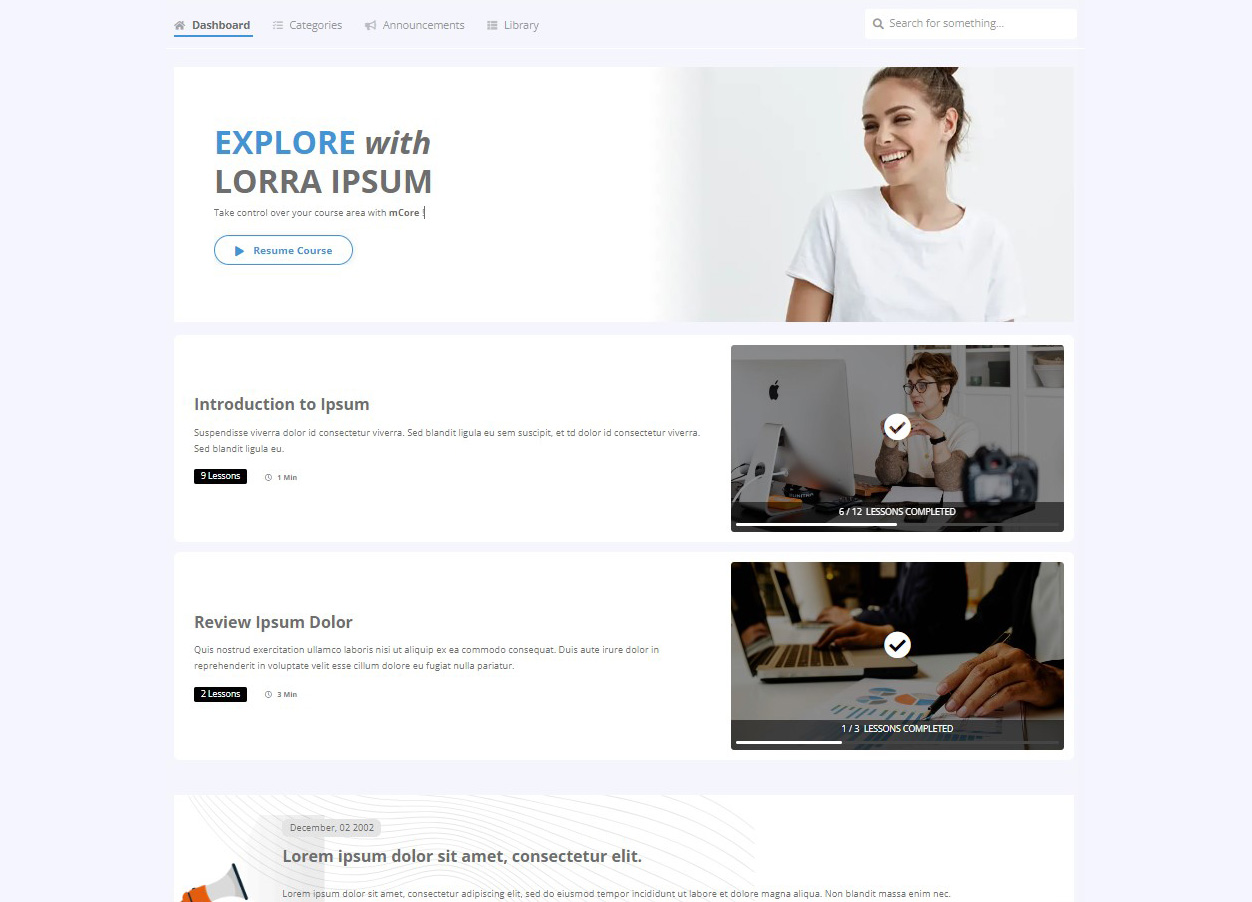
- Padded with outline bar and no sidebar
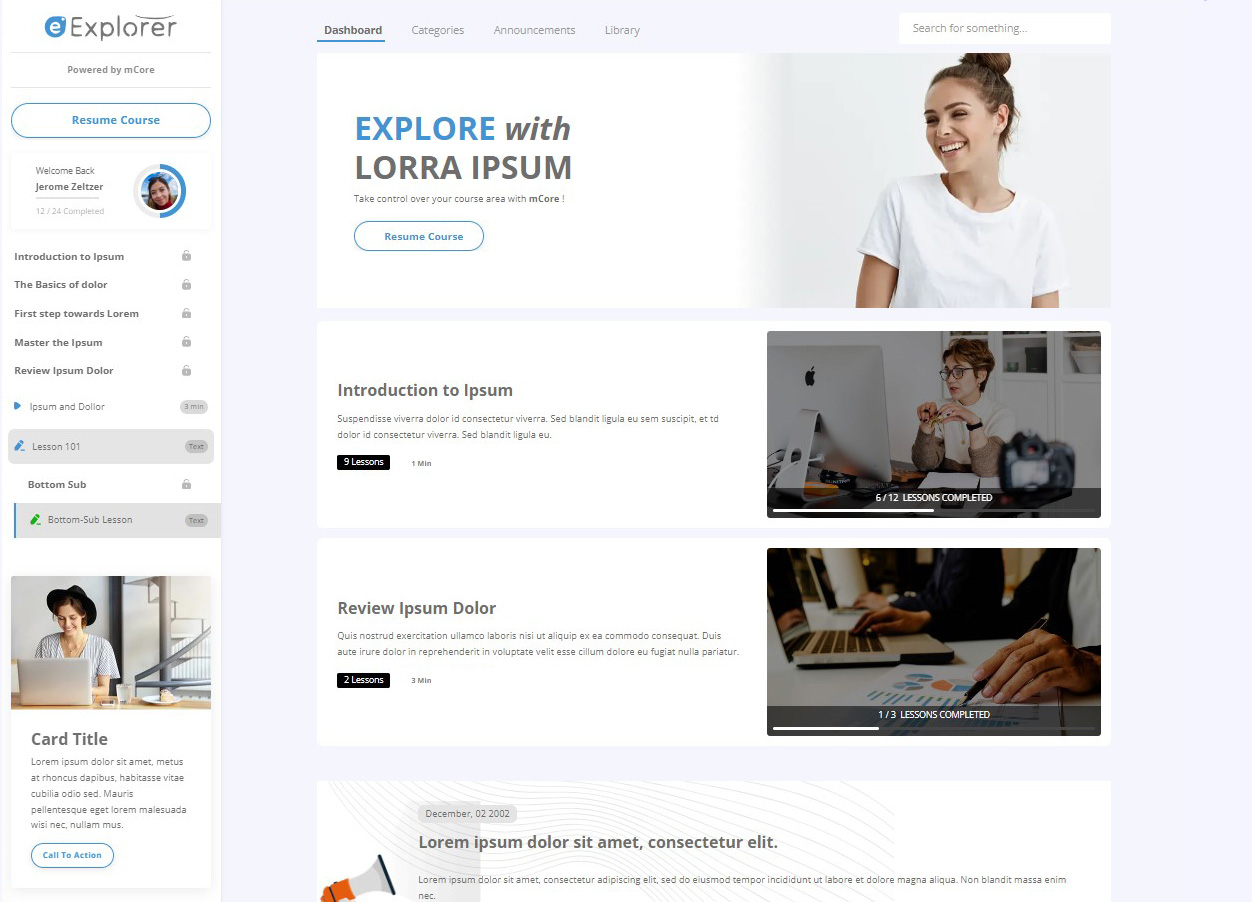
- No Outline bar just sidebar
- No Outline bar and no sidebar
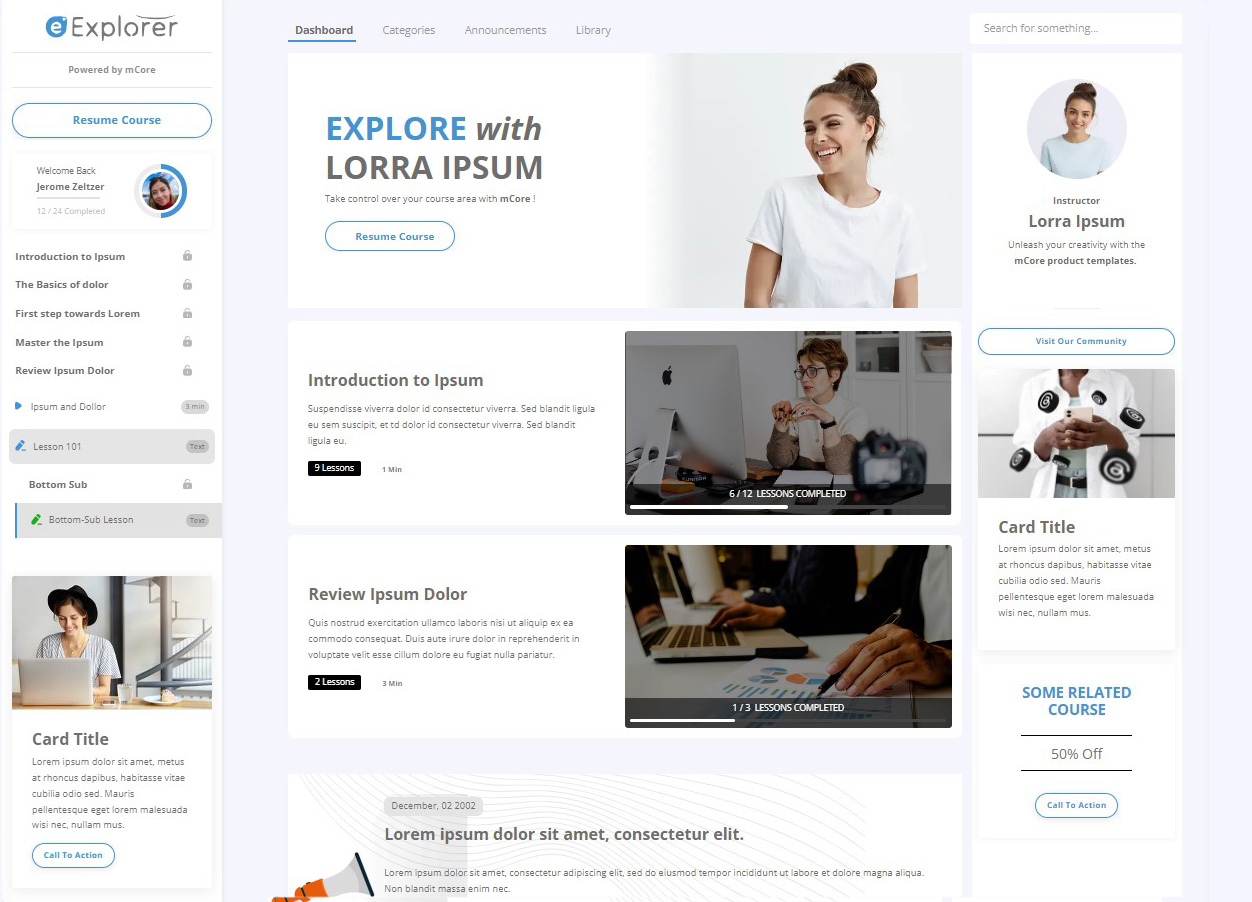
- Fixed outline bar and sidebar
- Fixed outline bar and no sidebar







Dynamic Sections
mCore employs a dynamic sections architecture, providing a selection of pre-designed sections for your convenience.
By simply clicking “Add Section,” you can integrate stunning pre-designed sections into any of your course pages.
Alternatively, you have the flexibility to craft your own sections using Encore-based custom sections.
Pre-designed Sections
mCore is packed with dozens of stunning, highly customizable pre-designed sections.
Construct a clean and beautiful dashboard within minutes with just a few clicks.
Enhance user engagement and effectively promote or cross-sell other courses to your audience.
Custom Sections
Encore templates are the backbone of site or landing page building in Kajabi, powering templates like Taylor, Prosper, Reach, and others.
With mCore, you can now enjoy the same level of flexibility offered by Encore template sections within your product template and your course, primarily through the utilization of blocks.
Choose from over 30 types of blocks, customize them, and seamlessly position and align them to narrate your story with style.


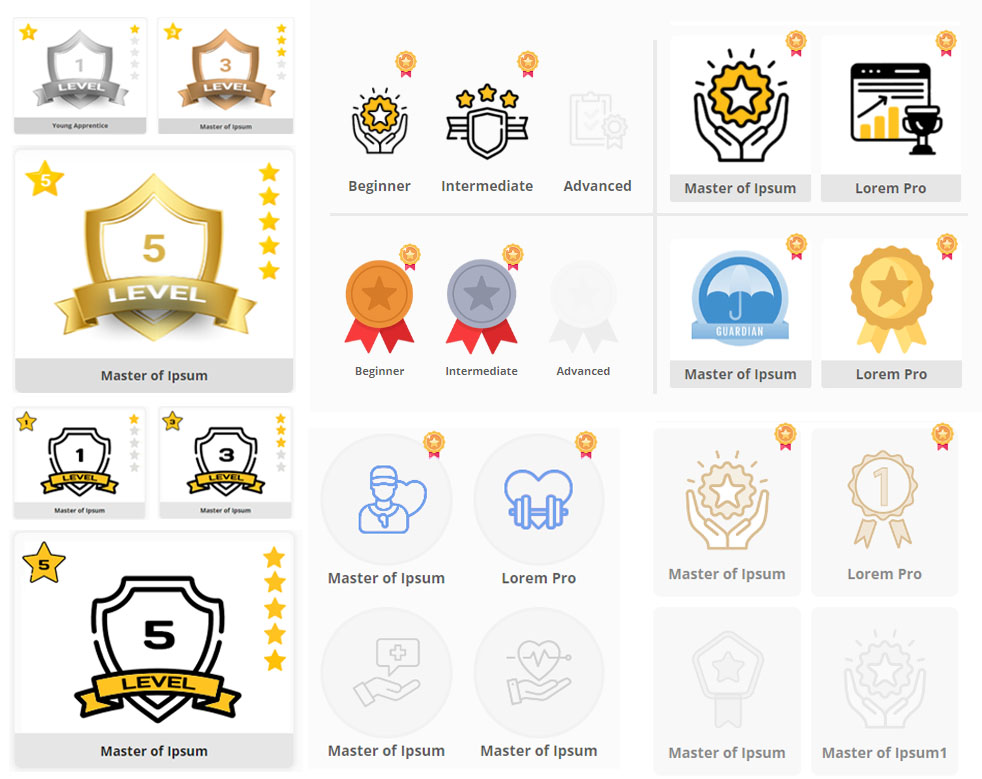
Badges and Levels
Boost engagement with our flexible, comprehensive, and easy-to-use gamification features.
Leverage Kajabi’s automation to grant badges and levels across one or multiple courses.
Pre-made badge designs
Choose from a selection of professionally designed badges, easily adding them to your template with a single click.
Flexible and easy to use
Dozens of user-friendly options provide full control.
Add an unlimited number of badges, customize columns, badge styles, labels, mini badges, colors, spacing, alignment, and more.
Display badges on any page, section, or sidebar.
Use your own icons or badges
Upload any PNG icon, and our system will automatically adjust its color and create a blank version.
Exciting pop-ups with engaging audio and confetti effects
Show a pop-up at the end of a lesson when a badge is granted. Customize the message for each badge, choose an audio effect, enable or disable a confetti effect, and more.
Level System (XP progression)
Motivate your students as they progress from Level 1 to Level X, or from beginner to expert, with exciting pop-ups and graphics showcasing their current level.
Post Page Preview Example Page
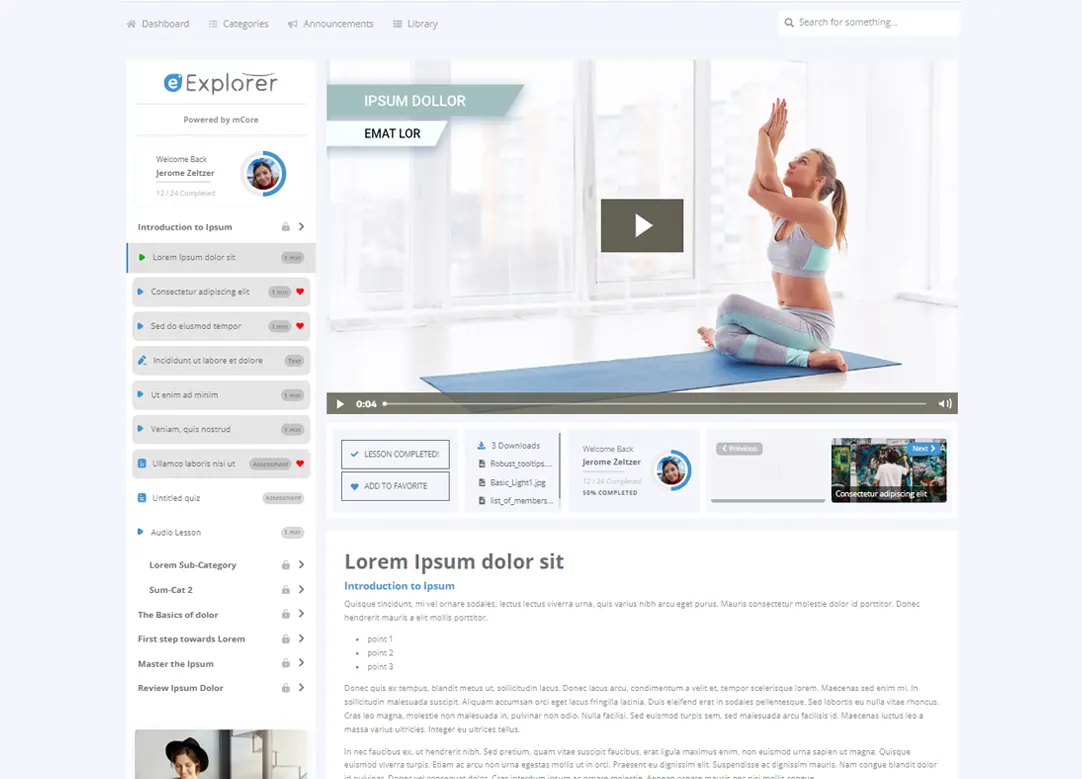
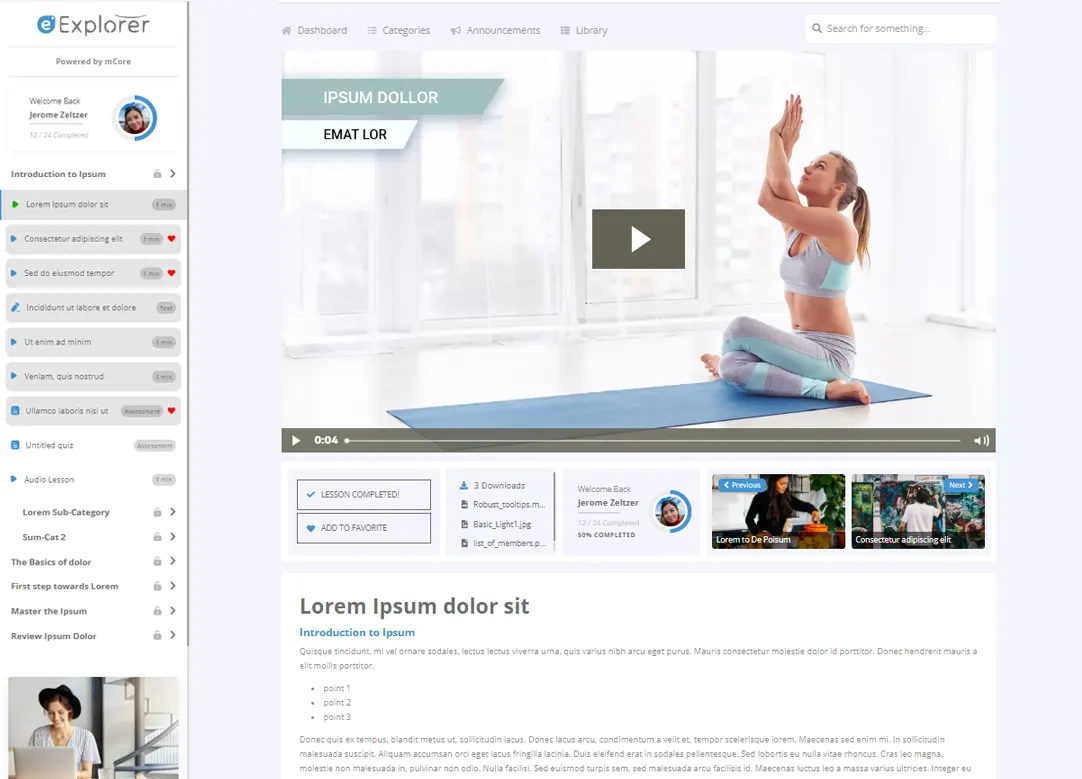
The layout of your Post Page can be independently controlled, offering three base layout options:
Padded, Fixed Outline, or No Outline.
Modify this layout any time by accessing your template’s settings.
Sidebar vs Action-bar:
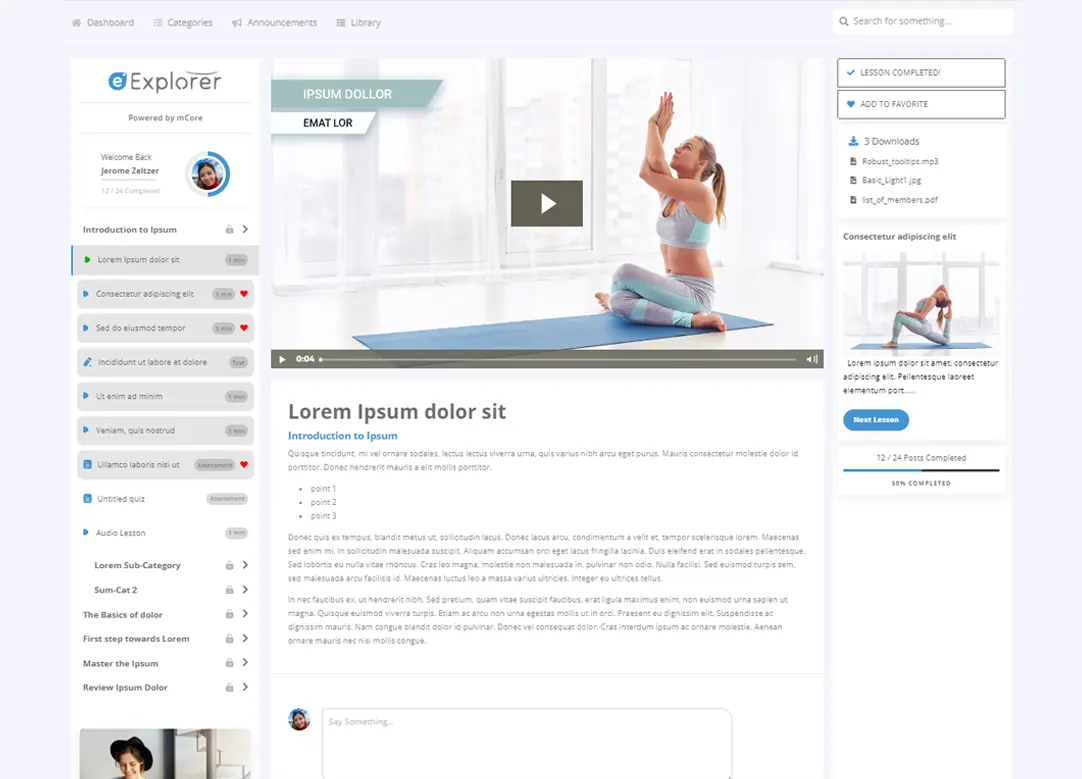
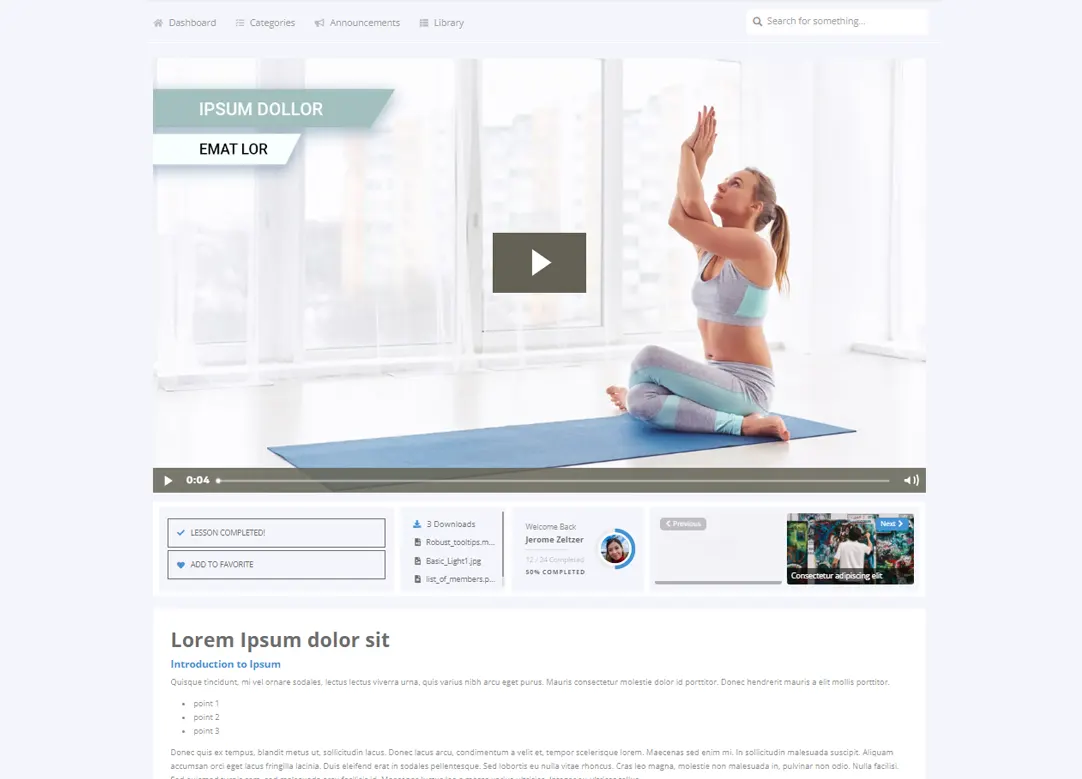
Choose between displaying a sidebar to the right of the video or an action-bar below it.
Both options provide extensive flexibility and control over elements.
The sidebar, which can be utilized with or without a playlist, offers over 20 block types that can be added with a single click.
- No Outline just sidebar
- Padded with outline and action-bar
- Sidebar without playlist
- Padded With outline and sidebar
- No Outline and action-bar
- Fixed outline and sidebar
- Fixed outline and action-bar



Sidebars
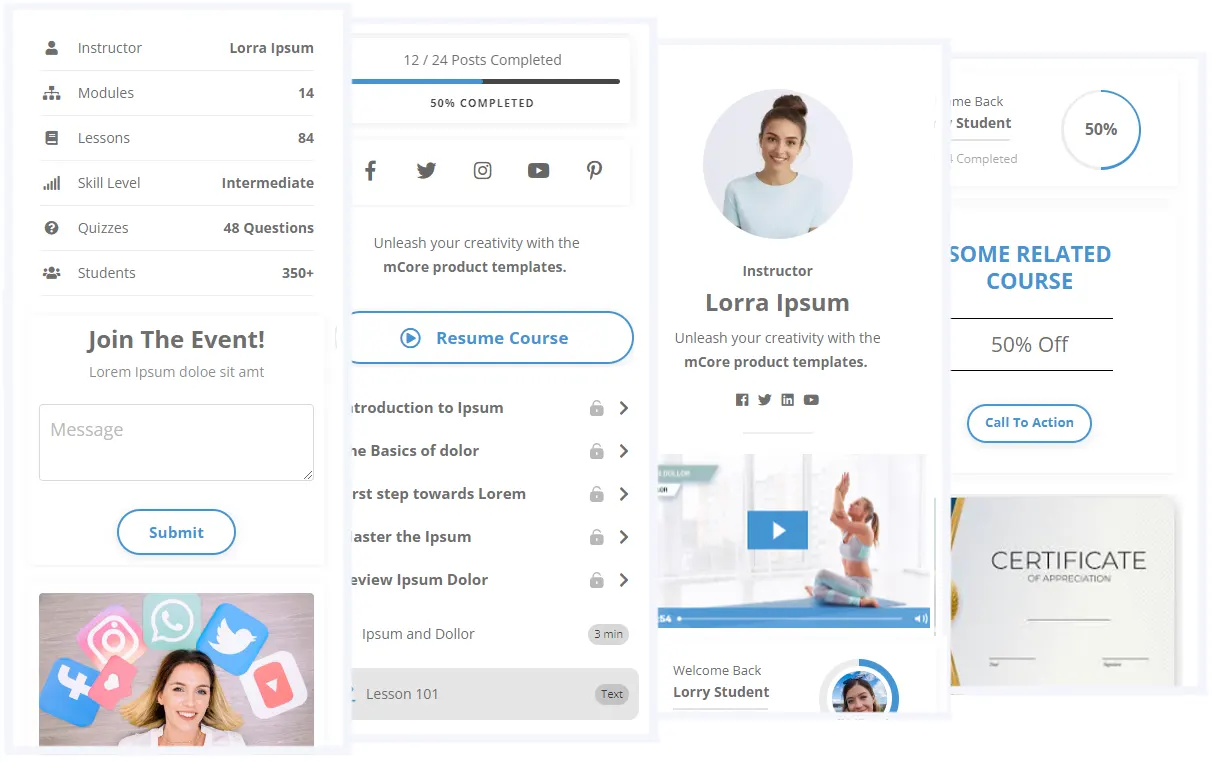
mCore templates incorporates three sidebars: Outline, Dashboard, and Post Page, each can be toggled to be shown or hidden.
Customize the functionality and message of your sidebars by adding or removing blocks according to your preferences.
As with any component of mCore, your sidebars are easily customizable to accommodate your needs and style.
Choose from over 20 dynamic building blocks. Utilizing our provided designs or constructing your own custom blocks.
Leverage your sidebars for cross-selling, highlighting content, facilitating event registration, promoting your brand, or providing help and support. Your template, your choice.
Outline
You have the flexibility to add or remove the outline block from any of the template’s sidebars, control its style and set the collapse behavior.
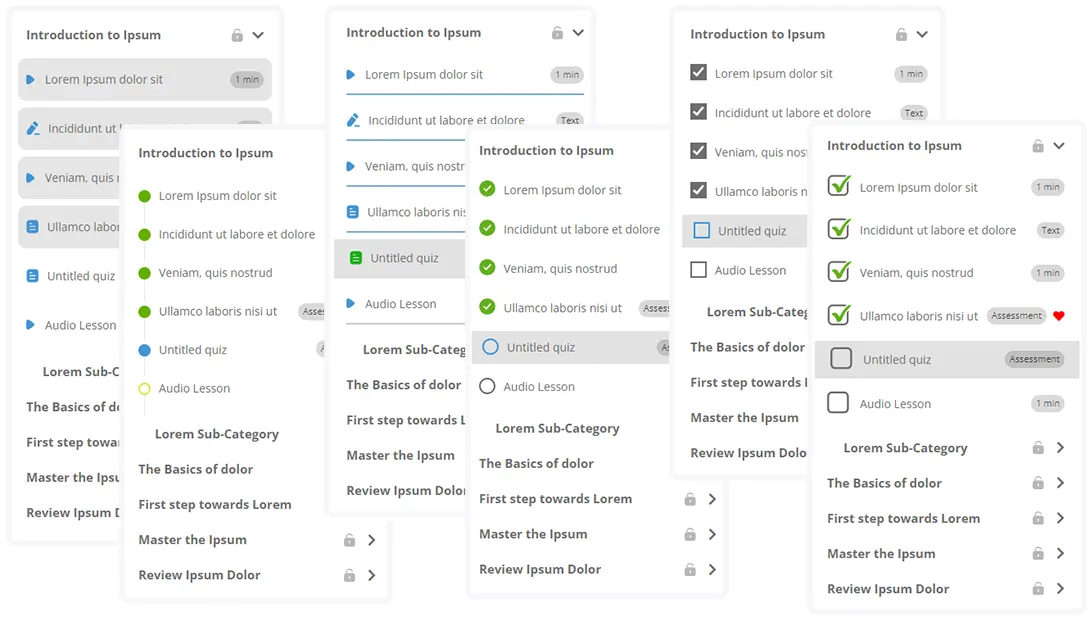
Styles and Icon Sets:
Infuse your course area with personality through formal, stylish, or fun outline designs.
Select from ten predefined styles and icon sets, allowing you to set or change them at any time.
Collapsing Categories:
The outline comprises a list of all course categories. Upon page load, all lessons under each category are hidden, with all categories initially collapsed.
All But Active (default): Collapse all categories except the one containing the currently active lesson.
Collapse All: Collapse all categories without exceptions.
Collapse None: Show all lessons, resembling the functionality of a Momentum template.


Smart Sliders, Grids, and Lists
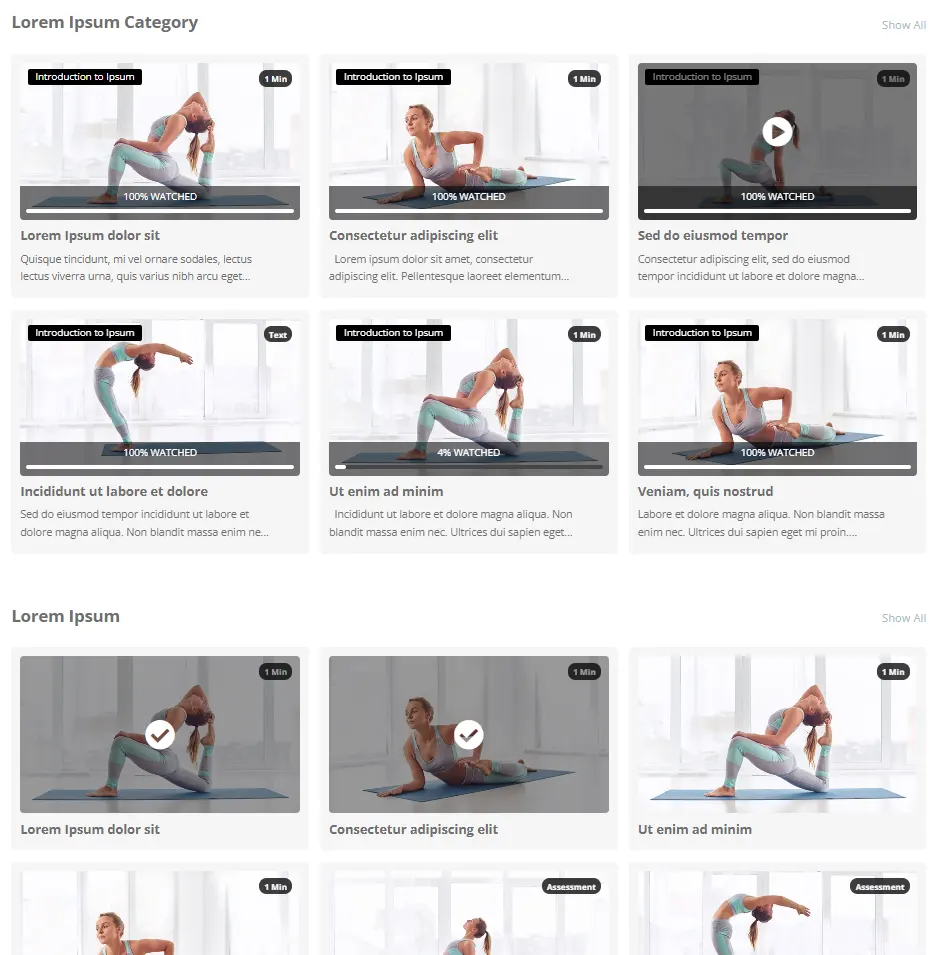
Smart Sliders enable you to present filtered or handpicked lessons or categories in slider, grid, or list formats, allowing you to construct a Netflix-style dashboard by stacking multiple Smart Sliders, Grids, or Lists one below the other.
Filters Lessons:
Filter by Category: Display lessons from a specific category.
Filter by Post IDs: Input a list of Post IDs, separated by commas.
Favorites: Showcase the student’s favorite lessons.
Include or exclude subcategories.
Layout and Style:
Present your lessons in slider, grid, or list formats.
Choose from 8 different predefined styles.
Number of columns:
Customize the number of columns for the grid or slider across desktop, tablet, and mobile devices.
Control grid items:
Control each grid item, show or hide the title, body, category, duration, compilation data, and more.
Slider Settings
Control the slider’s animation, speed, arrows, pagination, autoplay, and loop settings.
Categories pagePreview Example Page
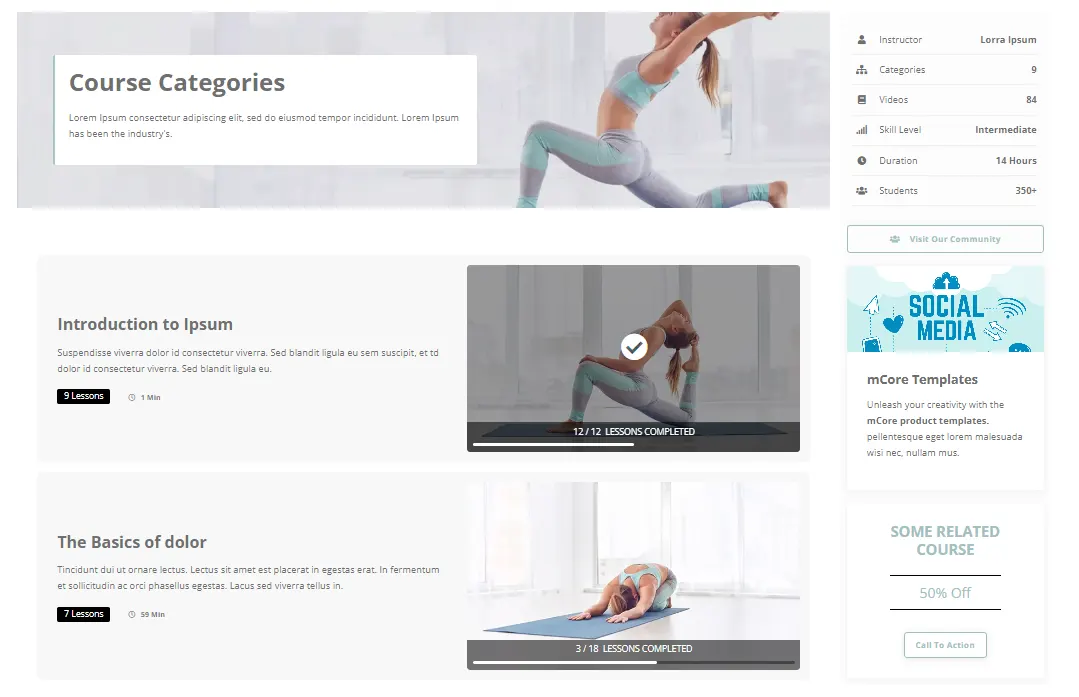
Take charge of your categories list layout and style, choose from 10 different pre-defined designs of lists, grids or sliders.
Adjust the number of columns or use any other customization option available in our Smart Grid sections.
Control each item in the grid by showing or hiding the category’s title, body, count, compilation data, and more.
Craft your page by adding pre-designed or custom sections above and below your categories listing.
The Categories page can be designated as your welcome page, replacing the Dashboard.
Category PagePreview Example Page
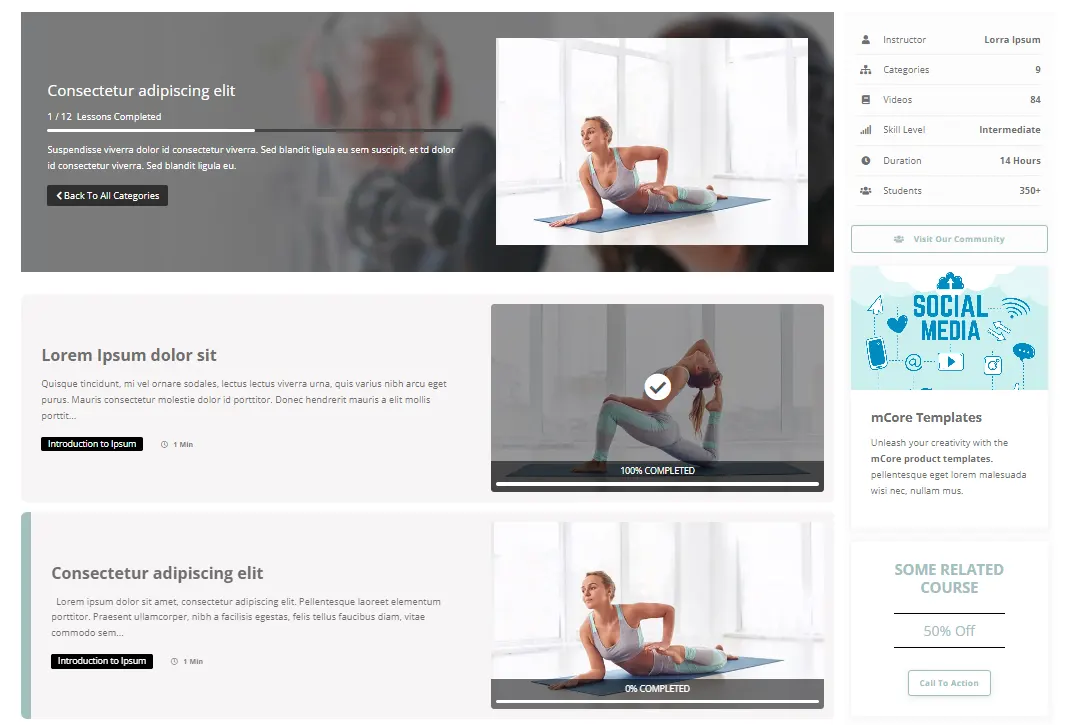
Category Page alongside the Categories page, makes it easy for students to find their way through the course material.
Choose from 10 different pre-defined designs of lists, grids, or sliders.
Customize your lesson listing layout and style, adjust the number of columns, or utilize other available customization options.
Control each item in the grid by showing or hiding the lesson’s title, body, duration, compilation data, and more.
Enhance the page by adding pre-designed or custom sections above and below your lessons listing.